# Getting Started with NDI in OBS for Windows or Mac
1. Download and Install OBS Studio
1. Install OBS Studio version 30.0.0 or later (Qt6, x64/ARM64/AppleSilicon) on all relevant machines from [https://obsproject.com](https://obsproject.com/).
2. Install the NDI plug in for OBS
1. Download the DistroAV NDI plugin for OBS from [**here**](https://distroav.org/download)
2. Before installing, remove any old versions of the OBS-NDI plugin to prevent conflicts.
3. Install the plugin ***after*** OBS Studio is installed.
4. Restart your computer after installation to ensure proper loading.
3. Install NDI Runtime
1. Download and install the latest NDI Runtime version later [**here**](https://github.com/DistroAV/DistroAV/releases/latest)**:**
4. Enable NDI Output in OBS (on the source computer)
1. Open OBS Studio
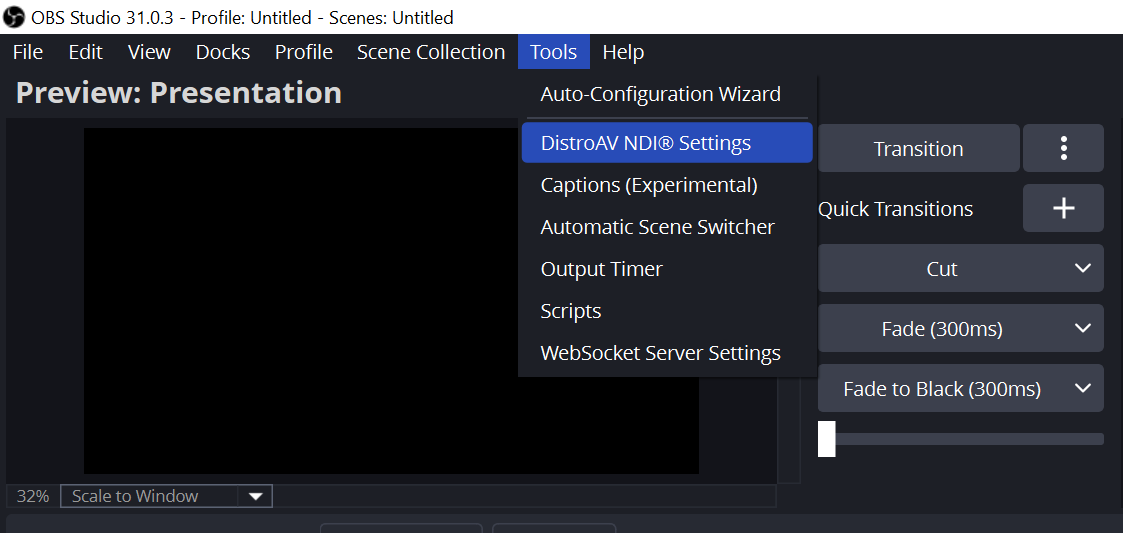
2. Navigate to Tools > DistroAV NDI® Settings
1. Check Main Output and/or Preview Output
2. (Optional) Give the output a name (e.g., "OBS-StreamPC")
---
# Agent Instructions: Querying This Documentation
If you need additional information that is not directly available in this page, you can query the documentation dynamically by asking a question.
Perform an HTTP GET request on the current page URL with the `ask` query parameter:
```
GET https://docs.ndi.video/all/using-ndi/using-ndi-with-software/getting-started-with-ndi-in-obs-for-windows-or-mac.md?ask=
```
The question should be specific, self-contained, and written in natural language.
The response will contain a direct answer to the question and relevant excerpts and sources from the documentation.
Use this mechanism when the answer is not explicitly present in the current page, you need clarification or additional context, or you want to retrieve related documentation sections.