> For the complete documentation index, see [llms.txt](https://docs.ndi.video/all/llms.txt). Markdown versions of documentation pages are available by appending `.md` to page URLs; this page is available as [Markdown](https://docs.ndi.video/all/using-ndi/ndi-tools/ndi-tools-for-windows/remote-discontinued.md).
# Remote - DISCONTINUED
Securely connect with multiple remote contributors.
## IMPORTANT INFORMATION
> **We’ve made the tough call to discontinue NDI Remote and take the service offline. This decision comes after identifying performance issues that can’t be quickly addressed. That said, we’re already exploring a more reliable way to bring Remote back in the future. We’ll share updates as soon as we have them.**\
> \
> **If you have questions or need a hand planning a workaround, please reach out through the proper channel. Our team’s here to help!** [**Support – NDI**](https://ndi.video/resources/support/)
***
**NDI Remote** is a tool that facilitates seamless connections with multiple remote contributors by simply sharing a link. This application enables receiving video and audio over the internet, transforming your device into an NDI video feed receiver.
{% hint style="info" %}
Download NDI Tools [here](https://ndi.video/tools/download/).
{% endhint %}
***
## **Accessing NDI Remote**
[Install NDI Tools](/all/using-ndi/ndi-tools/installing-ndi-tools.md) and run NDI Remote from the [NDI launcher](/all/using-ndi/ndi-tools/ndi-tools-launcher.md) or your applications list.
***
## Sharing Video
### Method 1: Send Invitation
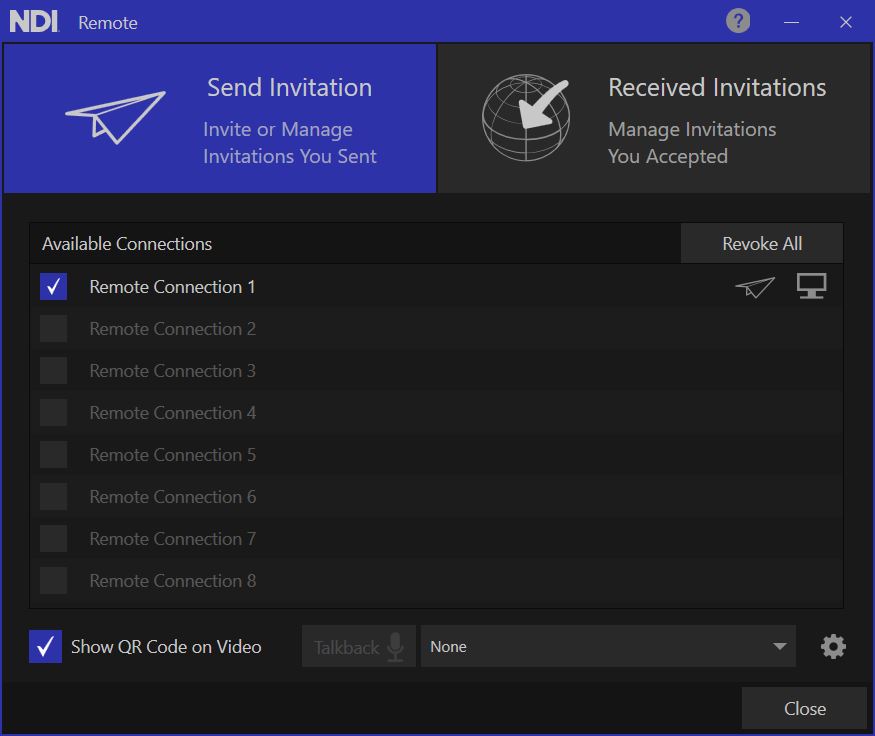
Screenshot of NDI Remote (Windows)
On the **Send Invitation** tab, enable a remote connection from the available list (up to eight connections). You should assign a specific name to the remote connection.
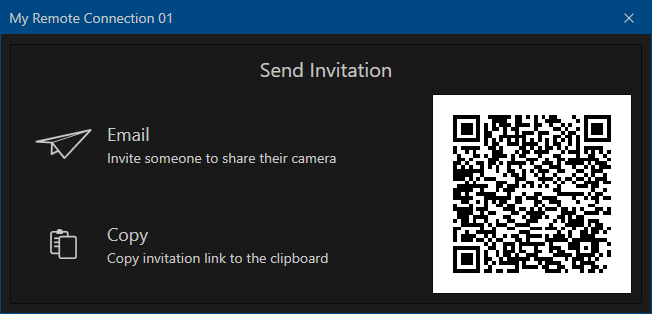
Then, click the share icon (paper plane icon) on the right side of the desired connection to open up a pop-up menu. This pop-up menu will present various methods to share an invitation:
Screenshot of NDI Remote (Windows)
* Via email.
* By sharing a unique QR code attributed to that connection.
* By sharing a unique URL.
The receiver will only need to open the link in a web browser on the remote device, grant access to the camera and microphone, and the video will begin being shared.
***
### Method 2: Initiating from the Remote Device
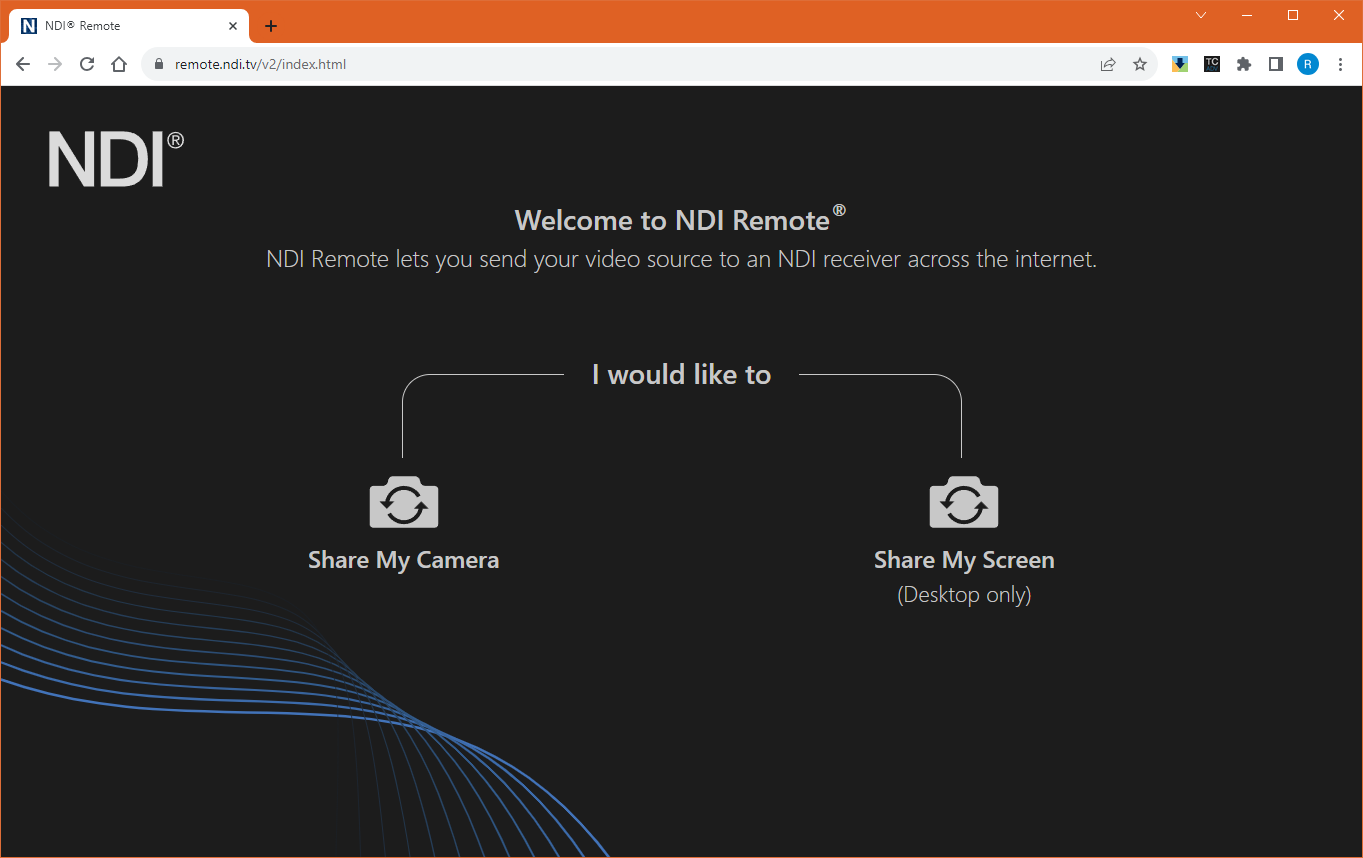
Visit the [NDI Remote page](https://remote.ndi.tv/). In there, you'll be able to select different sources to share:
* Your hardware system camera
* A feed of your computer's screen
Screenshot of NDI Remote webpage
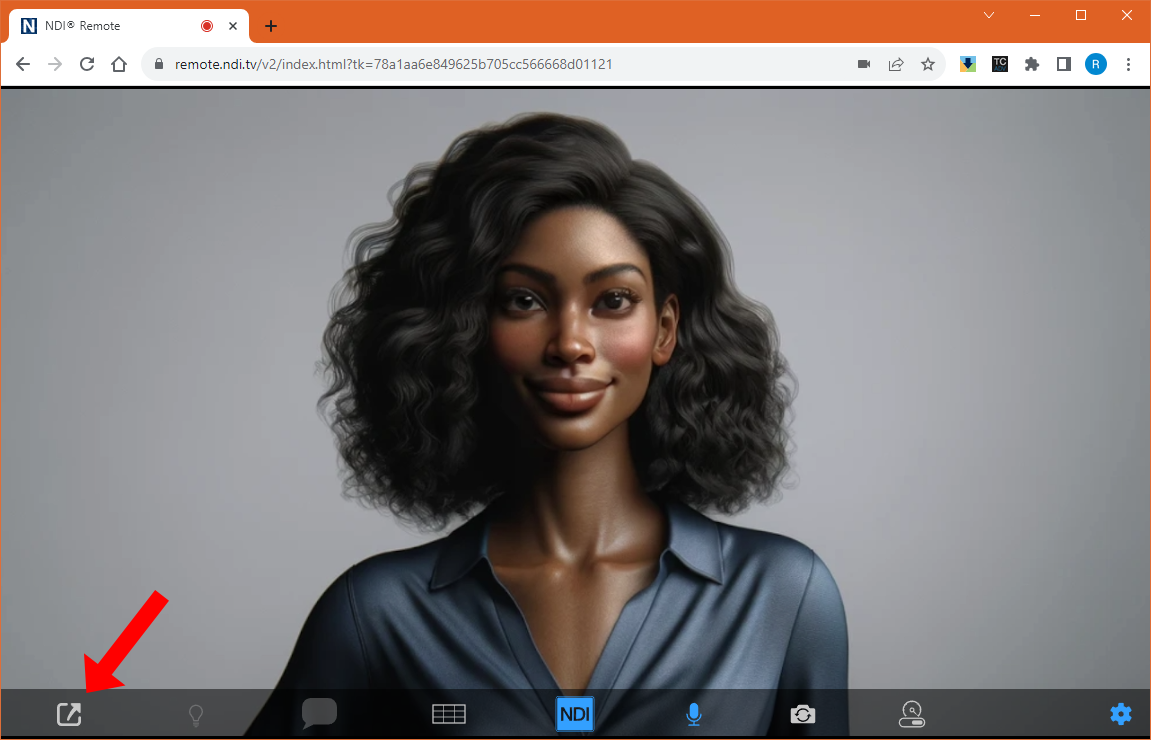
You'll be prompted to provide access to your computer's camera and microphone. If you accept, you'll start seeing a feed from your camera.
A menu will also show up. By clicking the leftmost icon, you'll be able to name your feed so that others can identify it. You'll also be able to share it by clicking the **Share** button.
Screenshot of the NDI Remote webpage
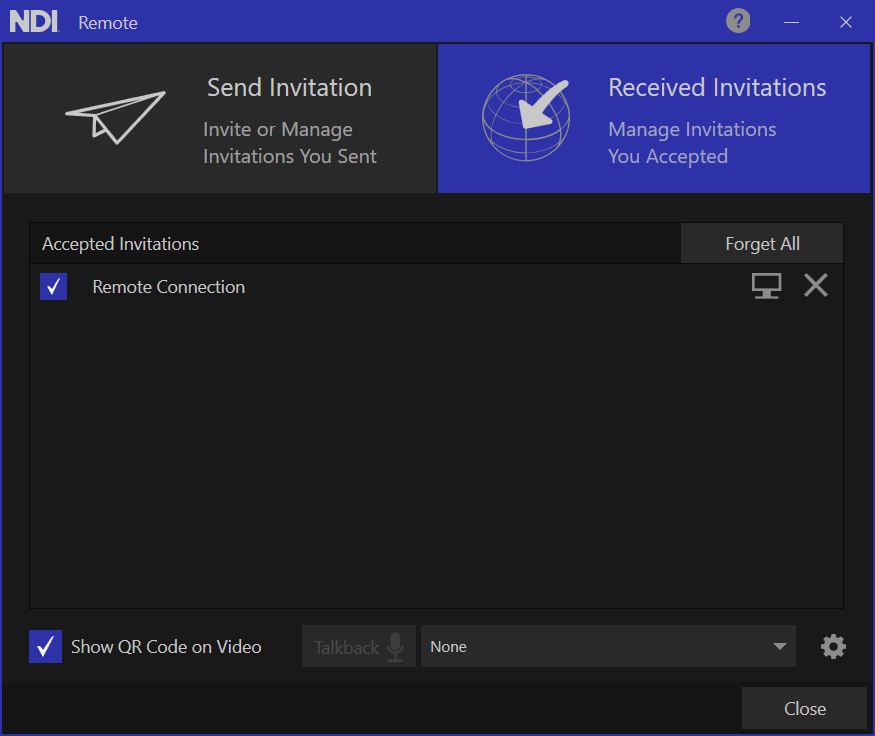
The person using the NDI Remote tool can view and manage the incoming connection on the **Received Invitations** tab. \
\
The NDI Remote connection is now generating an NDI source, which any NDI-enabled application in your local area network can receive.
Screenshot of NDI Remote (Windows)
***
## Using Turn Relay Server (Optional)
A TURN (**T**raversal **U**sing **R**elays around **N**AT) server is a network entity that facilitates the relaying of network traffic. When two devices are unable to establish a direct connection due to NAT[^1] or firewall restrictions, they use a TURN server as an intermediary. The TURN server temporarily stores the data from the sending device and forwards it to the receiving device.
TURN servers are particularly important in VoIP[^2] and interactive video conferencing applications that use protocols like WebRTC[^3].
This process helps in overcoming the limitations imposed by NAT, which can change the public IP address and port number of a packet and make it difficult for the receiving device to interpret where the data originally came from
With NDI Remote, a custom TURN server can be specified by the user:
1. Go to the **My Connections** tab and click the gear icon to open the Turn Relay Server options.
2. Activate the Turn Relay Server by checking the corresponding box.
3. Enter the Turn Server's URL and port provided by your system administrator.
4. Optionally, enter a username and password.
5. Click **Apply** to accept the Turn Server configuration.
[^1]: Network address translation (NAT) is a method of mapping an IP [address space](https://en.wikipedia.org/wiki/Address_space) into another by modifying [network address](https://en.wikipedia.org/wiki/Network_address) information in the [IP header](https://en.wikipedia.org/wiki/IP_header) of packets while they are in transit across a traffic [routing device](https://en.wikipedia.org/wiki/Router_\(computing\)).
[^2]: Voice over Internet Protocol (VoIP), is a technology that allows you to make voice calls using a broadband Internet connection instead of a regular (or analog) phone line.
[^3]: WebRTC (Web Real-Time Communications) is an open source project that enables real-time voice, text and video communications capabilities between web browsers and devices.
---
# Agent Instructions
This documentation is published with GitBook. GitBook is the documentation platform designed so that both humans and AI agents can read, navigate, and reason over technical content effectively. Learn more at gitbook.com.
## Querying This Documentation
If you need additional information that is not directly available in this page, you can query the documentation by asking a question.
Perform an HTTP GET request on the following URL with the `ask` and `goal` query parameters:
```
GET https://docs.ndi.video/all/using-ndi/ndi-tools/ndi-tools-for-windows/remote-discontinued.md?ask=&goal=
```
`ask` is the immediate question: it should be specific, self-contained, and written in natural language.
`goal` is what the user is ultimately trying to achieve, the reason they need the answer. Sharing it helps GitBook give you a better, more relevant answer. A goal is most helpful when it describes the outcome the user wants rather than restating the question. For example, with `ask=how do I create an API token`, a goal like `automate deployments from our CI pipeline` lets GitBook tailor the answer to that use case.
The response will contain a direct answer to the question and relevant excerpts and sources from the documentation.
Use this mechanism when the answer is not explicitly present in the current page, you need clarification or additional context, or you want to retrieve related documentation sections.