> For the complete documentation index, see [llms.txt](https://docs.ndi.video/all/llms.txt). Markdown versions of documentation pages are available by appending `.md` to page URLs; this page is available as [Markdown](https://docs.ndi.video/all/using-ndi/ndi-tools/ndi-tools-for-windows/discovery/getting-started-with-discovery-service.md).
# Getting Started with Discovery Service
This guide will explain how to get set up with NDI Tools application, Discovery Server and Studio Monitor on a Windows machine
{% stepper %}
{% step %}
**(Optional)** If you want to run the Discovery Server as a Windows Service then you'll need to install the stand alone Discovery Server package.
{% hint style="info" %}
The Discovery Service is only available for **Windows** and **Linux.** The screenshot below is the setup for Windows.
{% endhint %}
Install the Discovery Server package. During installation, you must specify the IP address and port for the Discovery Service.
* You can use **127.0.0.1 (localhost)** as the IP if you are only testing with receivers on the same machine. Otherwise, you must specify the IP address of the machine where the Discovery Server is running.
* The port can be left at the default value unless a different port is needed.
* The Discovery Service will start automatically
{% endstep %}
{% step %}
Install the [**NDI Tools package**](/all/using-ndi/ndi-tools/installing-ndi-tools.md).
{% endstep %}
{% step %}
Launch [NDI Tools](/all/using-ndi/ndi-tools.md) and complete the registration form (if not already done).
{% endstep %}
{% step %}
Launch [Access Manager](/all/using-ndi/ndi-tools/ndi-tools-for-windows/access-manager.md)
1. In the **Advanced** tab under **Network Mapping** enable **Discovery Servers**
2. Input the IP address of the Discovery Server and click **Apply**.
{% endstep %}
{% step %}
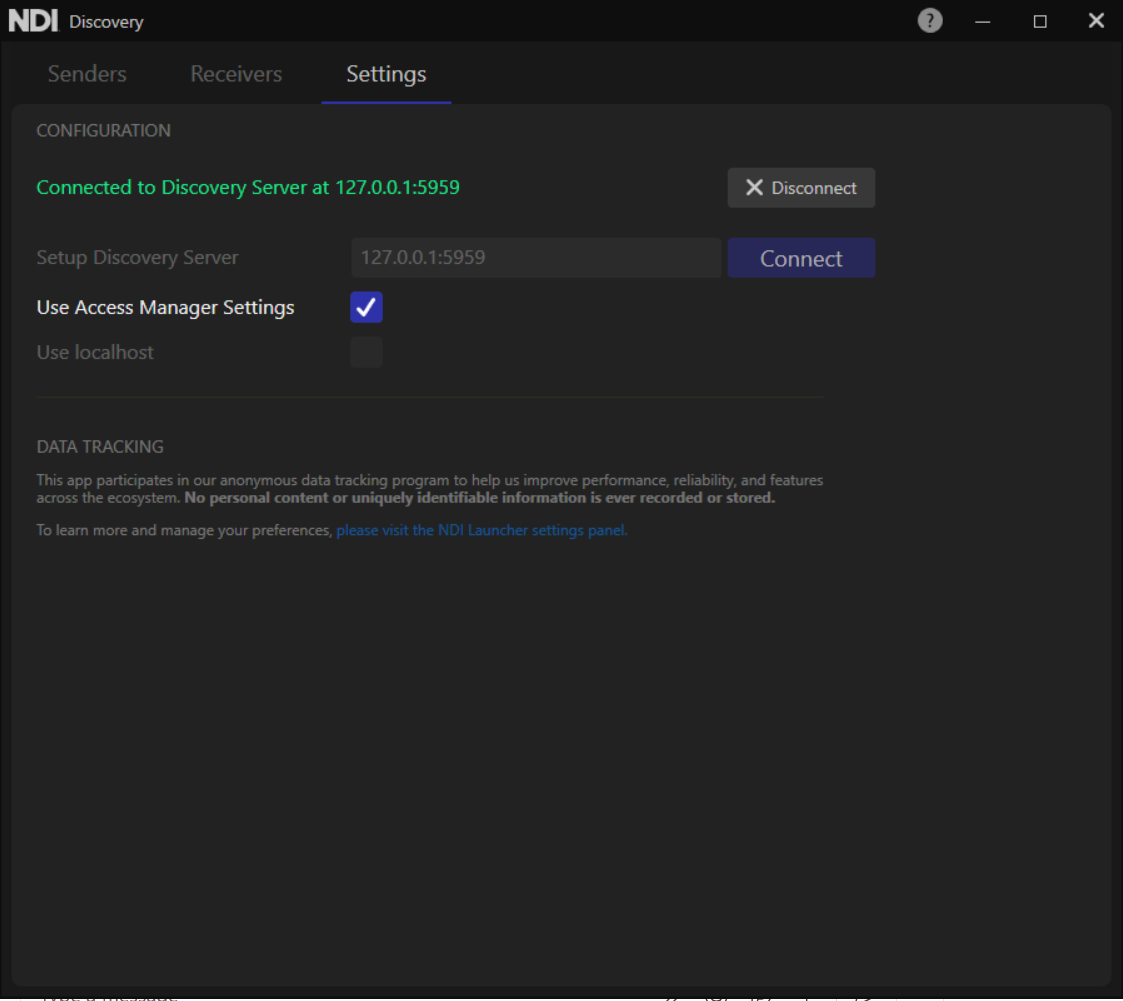
Launch **Discovery** from [NDI Tools](/all/using-ndi/ndi-tools.md)
1. Go to the **Settings** tab.
2. If you configured the Discovery Server IP in Access Manager in the previous step, then you should select and enable **Use Access Manager Setting**s.
3. Otherwise, enter the IP address of the Discovery Server next to **Setup Discovery Server** and click **Connect**.
4. Just above you should see a message in green saying, **Connected to Discovery Server at** and the IP address and port.
5. If the message is in yellow saying, **Attempting to Connect** then double check your IP settings again. If you think you might have made a mistake with the Discovery Server’s IP address or port, you will need to run the installer again to reconfigure the IP and port.
6. Once done, click back to the **Receivers** tab.
{% endstep %}
{% step %}
Launch [Studio Monitor](/all/using-ndi/ndi-tools/ndi-tools-for-windows/studio-monitor.md)
1. Click on the Menu button on the top left. Select **Settings**.
2. Click and enable **Allow Receiver Advertising**.
3. Click and enable **Allow Receiver Control.**
{% endstep %}
{% step %}
In the Discovery Application
1. You should now see the **Studio Monitor** receiver in the **Discovery** application.
2. Receivers will be grouped by hostname first.
{% endstep %}
{% endstepper %}
---
# Agent Instructions
This documentation is published with GitBook. GitBook is the documentation platform designed so that both humans and AI agents can read, navigate, and reason over technical content effectively. Learn more at gitbook.com.
## Querying This Documentation
If you need additional information that is not directly available in this page, you can query the documentation dynamically by asking a question.
Perform an HTTP GET request on the current page URL with the `ask` query parameter, and the optional `goal` query parameter:
```
GET https://docs.ndi.video/all/using-ndi/ndi-tools/ndi-tools-for-windows/discovery/getting-started-with-discovery-service.md?ask=&goal=
```
`ask` is the immediate question: it should be specific, self-contained, and written in natural language.
`goal` is optional and describes the broader end goal you are ultimately trying to accomplish on behalf of the user. GitBook uses it to tailor the answer towards what is most useful for that goal.
The response will contain a direct answer to the question and relevant excerpts and sources from the documentation.
Use this mechanism when the answer is not explicitly present in the current page, you need clarification or additional context, or you want to retrieve related documentation sections.